
 Open web-app
User Manual / Account & Login
Account & Login
Summary
You can try Mailboard AI without an account, but a free awaBerry account unlocks the things that work across devices: a managed AI subscription, iCloud sync of your settings, and restoring purchases. You can sign in the quick way with Apple, Google, or Microsoft, or with an email and password you register. When you are signed out, account-related screens show "User is not logged in" with a Login button. Signing in with Apple, Google, or Microsoft can also offer to link that same mailbox as an inbox (see Inboxes).
Features
- One-tap sign-in — Sign in with Apple, Sign in with Google, and Sign in with Microsoft authenticate in the provider's own window; no password is typed into the app.
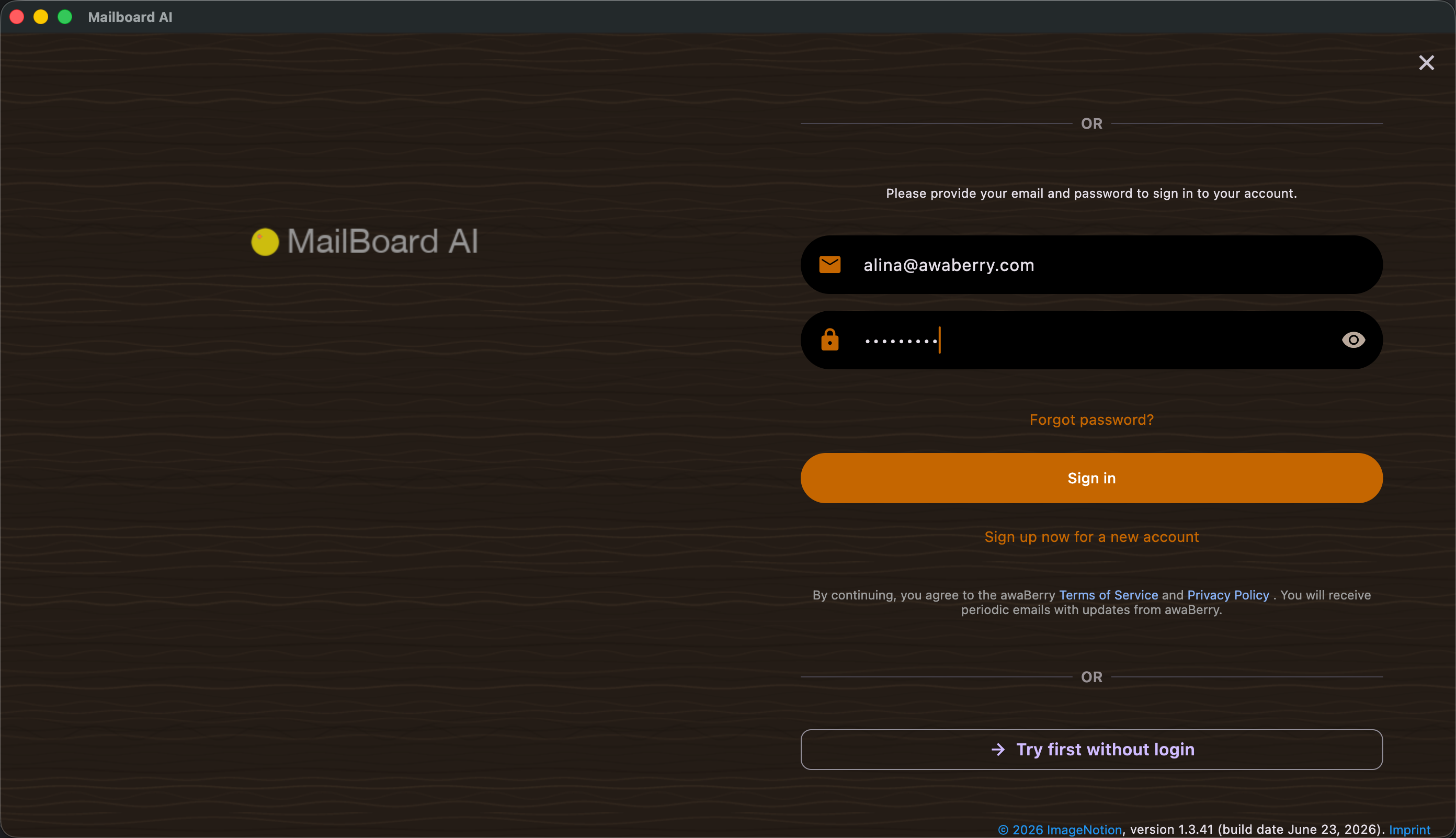
- Email & password login — the Login screen accepts the email and password of an awaBerry account.
- Register new account — Register new account creates an account from an email address and password.
- Forgot password — request a reset by entering the email address used to create the account.
- Why sign in — required for a managed AI plan, to sync settings via iCloud, and to restore in-app purchases (Sign in with Apple is required to sync purchases). Bring-your-own-key AI and a single local inbox work without an account.
- Device authentication key — if you set a password for the device authentication key, Mailboard AI asks you to decrypt the authentication key on a new device to unlock synced, encrypted data.
- Delete account & data — Delete Your Account permanently removes your account and all associated data (separate from the board's "Delete local data", which only clears this device).
Scenarios
Sign in with Apple, Google, or Microsoft
- On the Login screen tap Sign in with Apple, Sign in with Google, or Sign in with Microsoft.
- Complete the provider's sign-in in its window.
- You are returned to the app signed in. If prompted, you can also link that account's mailbox as an inbox.
Register with email and password
- On the Login screen choose Register new account.
- Enter your email address and a password, then submit.
- Confirm your email if asked, then sign in. Tip: if a typo slips into the email, register again with the correct address.
Reset a forgotten password
- On the Login screen choose the forgot password option.
- Enter the email address you used to create your awaBerry account.
- Follow the reset link sent to that address.
Unlock a new device (authentication key)
- If you set a password for the device authentication key, a new device shows the Decrypt authentication key screen after sign-in.
- Enter that password to decrypt the key and unlock your synced data on the device.
Delete your account and all data
- Open Delete Your Account from your account / settings.
- Read the warning — this permanently deletes your account and all associated data.
- Confirm with Delete My Account and Data.