
 Open web-app
User Manual / Connecting a Custom IMAP Inbox
Connecting a Custom IMAP Inbox
Summary
The Custom IMAP option links any IMAP-compatible mail provider that is not Gmail, Microsoft, or iCloud. On the Inbox credentials screen you supply your account details and the provider's incoming (IMAP) and outgoing (SMTP) server addresses and ports. If your provider requires a dedicated app password, use that instead of your normal login password. Everything is stored encrypted on your device.
Features
- Account name — a label for the inbox (required).
- Email address — your full email address; must contain an "@".
- Username — the login user name, usually the same as the email address (required).
- Password / App password — your mailbox password, or a provider-issued app password where required (required).
- IMAP server — the incoming mail server hostname (required), with an IMAP port.
- SMTP server — the outgoing mail server hostname (required), with an SMTP port.
Scenarios
Add an IMAP account
- On the Choose provider screen pick Custom IMAP → Enter server details.
- Fill in the Account name, Email address, Username, and Password / App password.
- Enter the IMAP server and SMTP server hostnames provided by your email host, with their ports.
- Save — the inbox is validated and added to the board.
Edit an existing IMAP inbox
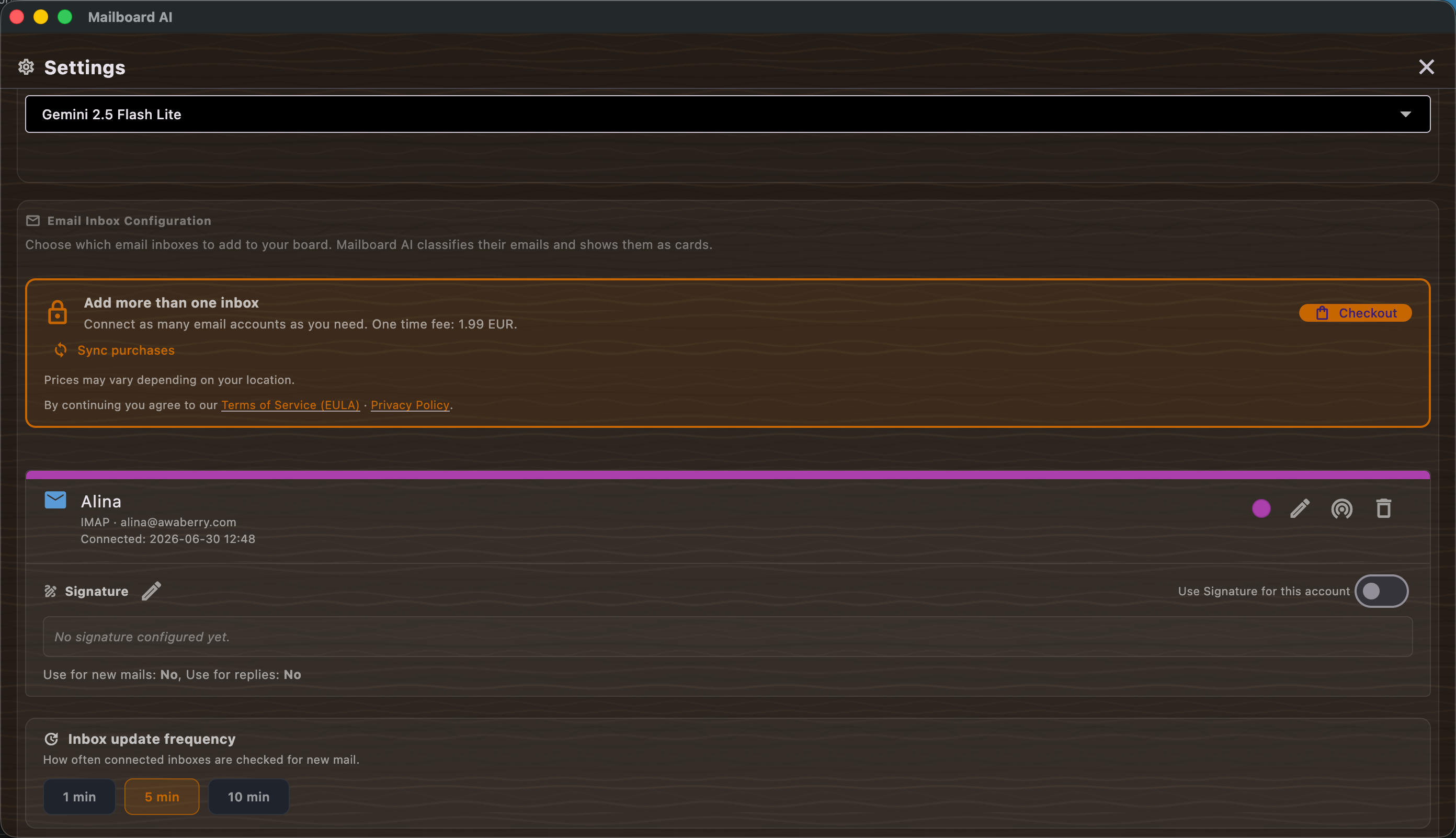
- Open Settings → Email Inbox Configuration and select the inbox.
- Adjust the credentials or server details.
- Save; the back arrow returns you to the Email Board.